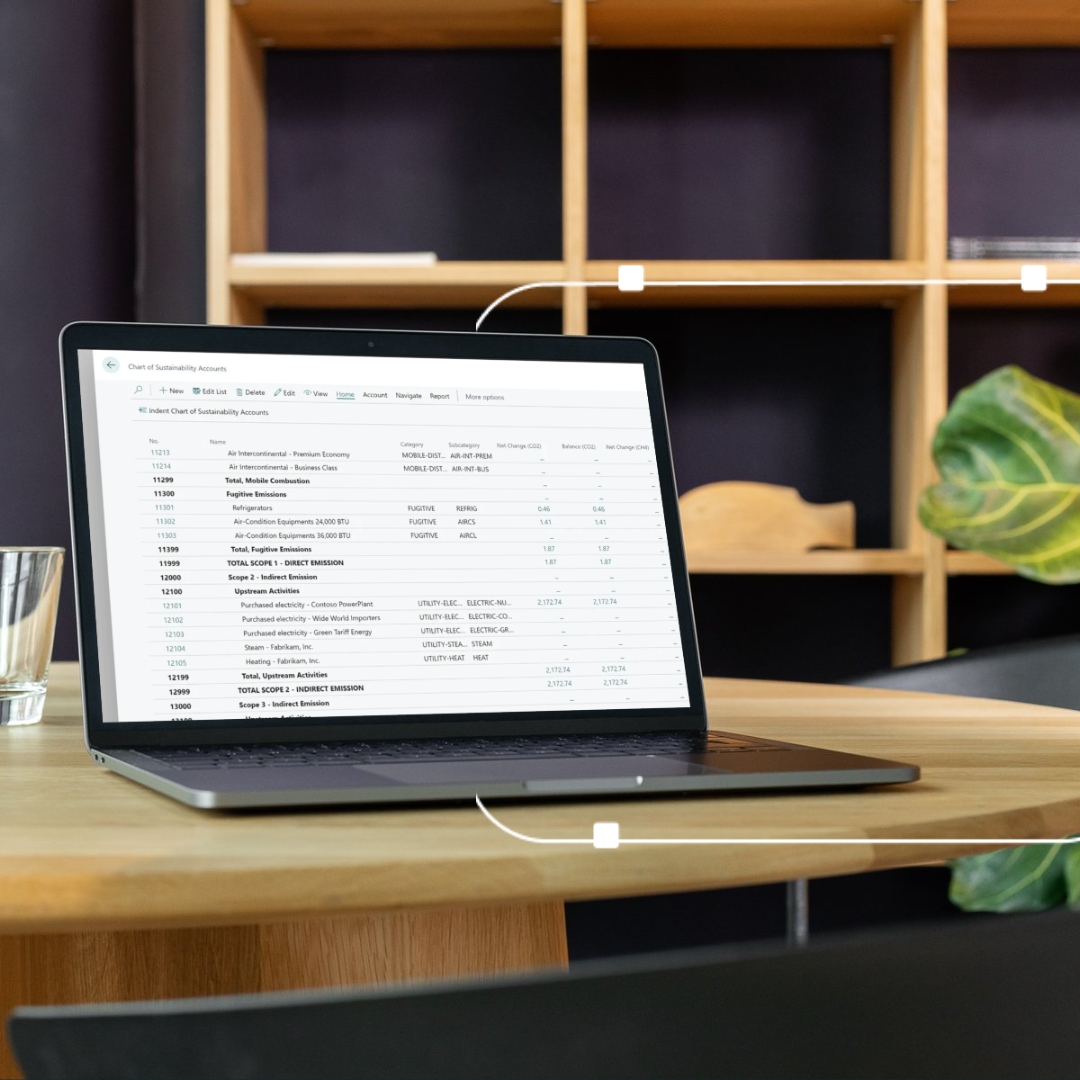
In Business Central, you can edit many elements that affect the aesthetics and transparency of generated reports. Which elements can be personalized for the individual needs of the organization?
Downloaded reports can be opened and edited using Microsoft Word and SQL Server Buildier. This means that we distinguish two types of files:
• .docx (supported by Microsoft Word);
• RDLC (supported by SQL Server Report Builder).
Depending on the file selection, the report may look slightly different. Comparison below:
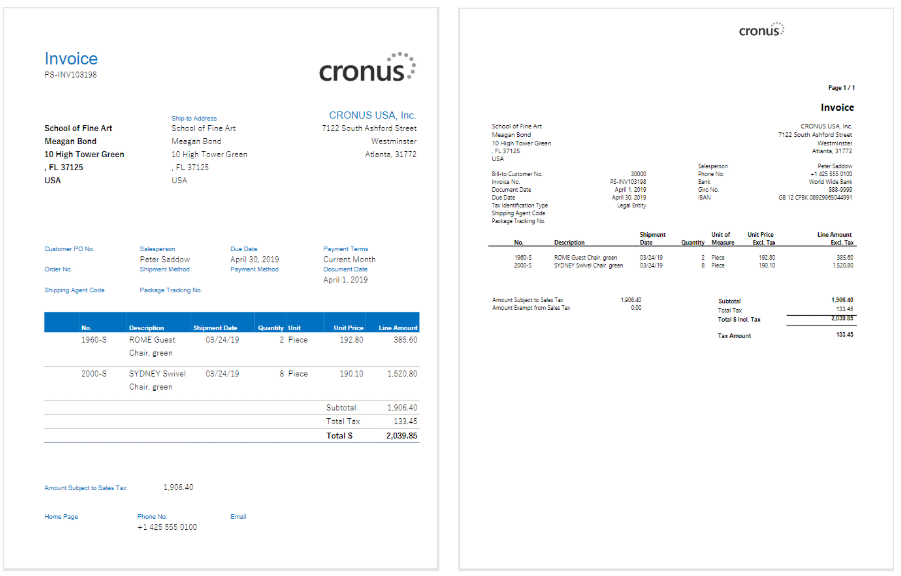 Source: https://docs.microsoft.com/en-us/learn/modules/change-documents-dynamics-365-business-central/1-manage
How do you modify the report layout?
To do this, go to Custom Report Layouts. Then click on Report Layout Selection. Then choose Custom Layouts.
On the Custom Layouts page, choose Export Layout and save the layout to your computer. Source: https://docs.microsoft.com/en-us/learn/modules/change-documents-dynamics-365-business-central/2-create
Making basic changes such as changing the layout, changing the font, or editing data, requires the use of basic Microsoft Word functions. However, if you are going to change the report layout or add new data fields, you must make these changes in XML. You can edit this type of data in the Developer tab on the ribbon. Changes to the RDLC file can be made using Visual Studio Report Designer or SQL Server Report Builder.
After making changes, save the file and import from Business Central.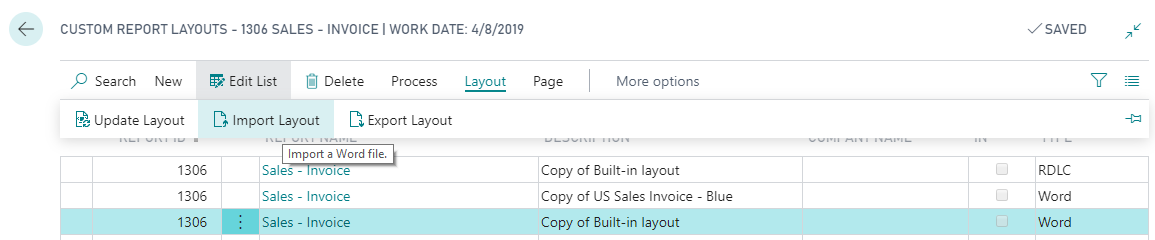 Source: https://docs.microsoft.com/en-us/learn/modules/change-documents-dynamics-365-business-central/2-create
Report layout update
In addition to modifying existing reports, you can update existing reports. This situation may occur when there has been a change in the report data set (e.g. deleted fields, removed labels or data elements, duplicate field names). In this case, an error message should appear. For minor issues, you can upgrade from Business Central. Source: https://docs.microsoft.com/en-us/learn/modules/change-documents-dynamics-365-business-central/3-layouts
In some cases, however, you will need to manually edit the report layout using Microsoft Word.
After the update, it is recommended to perform the test. Source: https://docs.microsoft.com/en-us/learn/modules/change-documents-dynamics-365-business-central/3-layouts
The article was based on materials from the Microsoft Learn website.
Would you like to learn more? Let's get in touch.
Sending...