
In the Business Central system, customers are a key element in the sales process. This is why in everyday work with BC we can face the challenge of introducing a new customer to the system. This article describes the basic settings related to adding new customer.
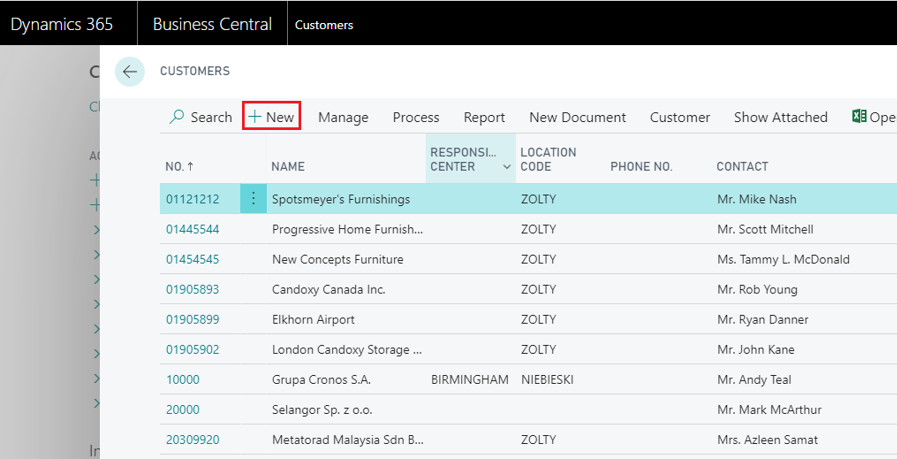
In the first step you have to go to the Customers page. To do this, click on the search icon in the upper right corner of the screen and then enter Customers in the search box. As a result, a list of customers will appear.
To open an empty customer card, just click New.
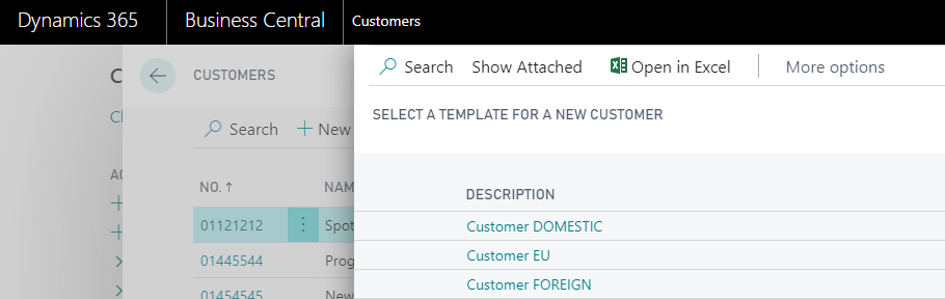
Then you can choose the customer card template. For example, “Customer EU“.
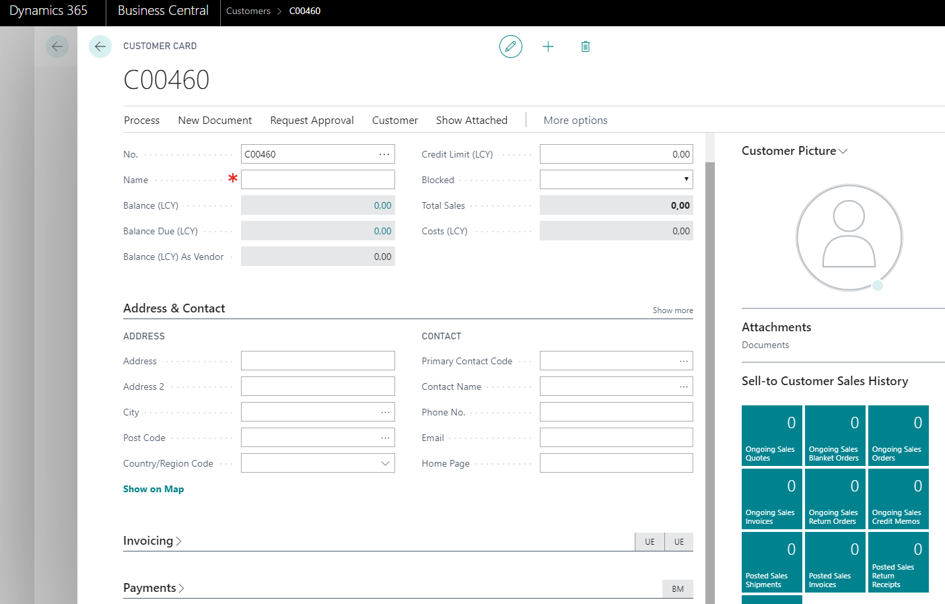
After choosing the customer card template we are redirected to the customer card.
The User should complete the Customer Card with basic information. On the Customer Card we will find, among others, the following fields:
After entering the selected data, just save and that’s it. Now we can sell products and services to a new customer.
The article was based on the movie from the Microsoft Dynamics 365 YouTube channel: https://www.youtube.com/channel/UCJGCg4rB3QSs8y_1FquelBQ
Would you like to learn more? Let's get in touch.
Sending...